Maestro Music Dashboard Guide for Teachers
Aug 07, 2026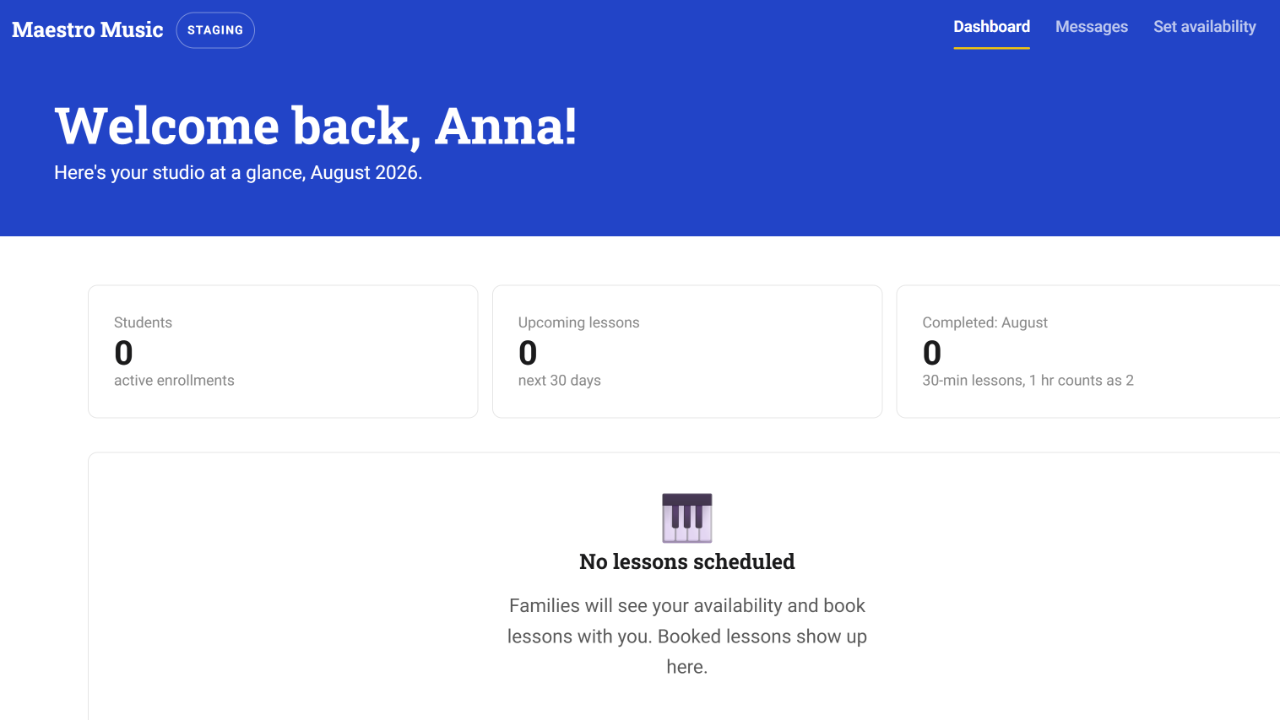
This guide serves as your primer for teaching on the Maestro Dashboard. It covers how to set up your account, how to set your availability, tips for using your dashboard, need-to-know policies, and common questions you might get from parents.
Please reach out to info@maestromusic.online if your question is not addressed here or if you have any feedback or suggestions on how we can improve. We take your feedback seriously and will update the dashboard as we can to make this the best possible experience for you and your students.
1. Setting Up Your Account
Once your onboarding paperwork has been completed, getting set up on the Maestro dashboard should take about 10 minutes. Be sure to follow these steps in order:
1.1. Check Your Email Inbox for Two Invites
Once we’ve received your paperwork, you'll get two separate emails. You need to act on both. They usually arrive within a few minutes of each other, so if you only see one, wait a bit before assuming something's missing:
Email 1 of 2: Zoom Invite
You’ll receive a Zoom invite to the email address you shared with us.
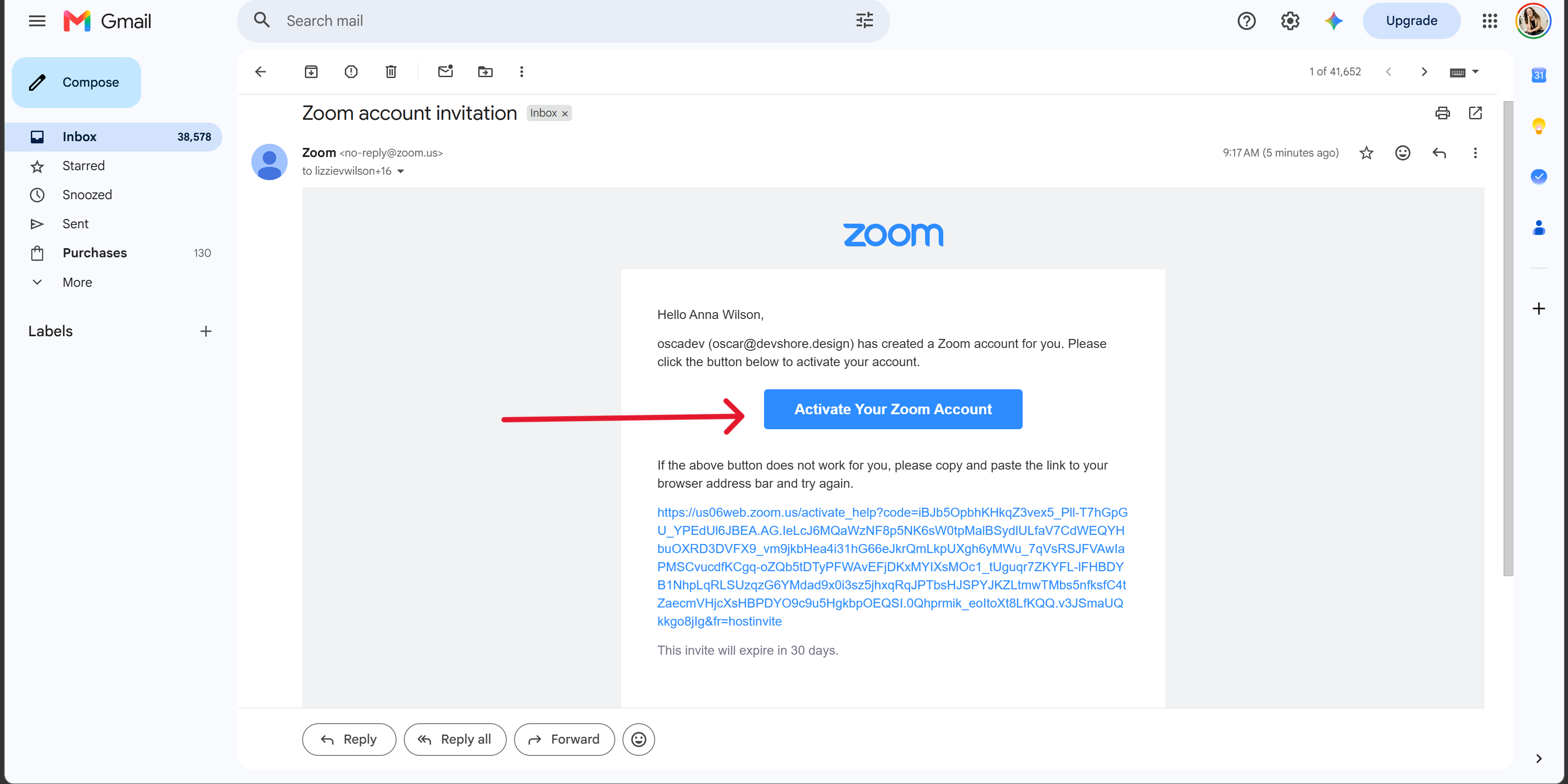
Click "Activate Your Zoom Account"
Once this email has arrived at an address you're fine using as your Maestro Zoom account, go ahead and hit "Activate Your Zoom Account."
Email 2 of 2: Maestro Invite
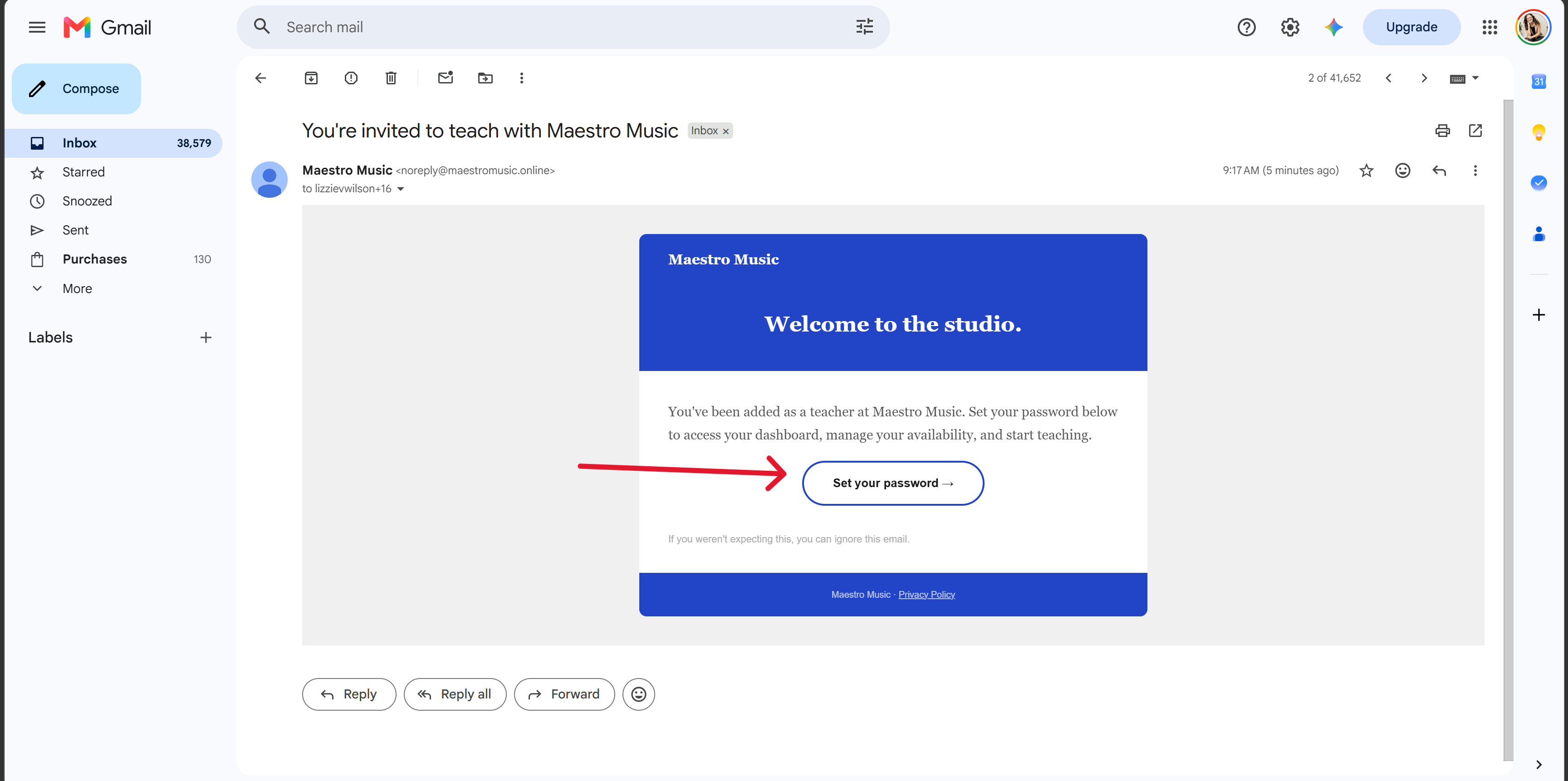
Click 'Set your password' to start.
Click the link to set your password and create your Maestro Teacher Dashboard.
Setting up Zoom and Joining the Dashboard FAQs:
I already have a Zoom account under this email, what happens if I accept the invite?
If you already use this email address for an existing Zoom account, activating this invite will override it. If you want to keep them separate, email us at info@maestromusic.online with a different email to use for Zoom instead of hitting "Activate Your Zoom Account."
Who do I contact if I didn't get one of the two invite emails?
Email info@maestromusic.online and we'll resend it.
My link to Zoom or the Dashboard expired. Now what?
Email info@maestromusic.online and we'll resend it.
After I create my account and close the window, how do I get back to the Dashboard?
Go to app.maestromusic.online to sign back in.
1.2. Choosing Your Maestro Dashboard Password and Adding Text Notifications
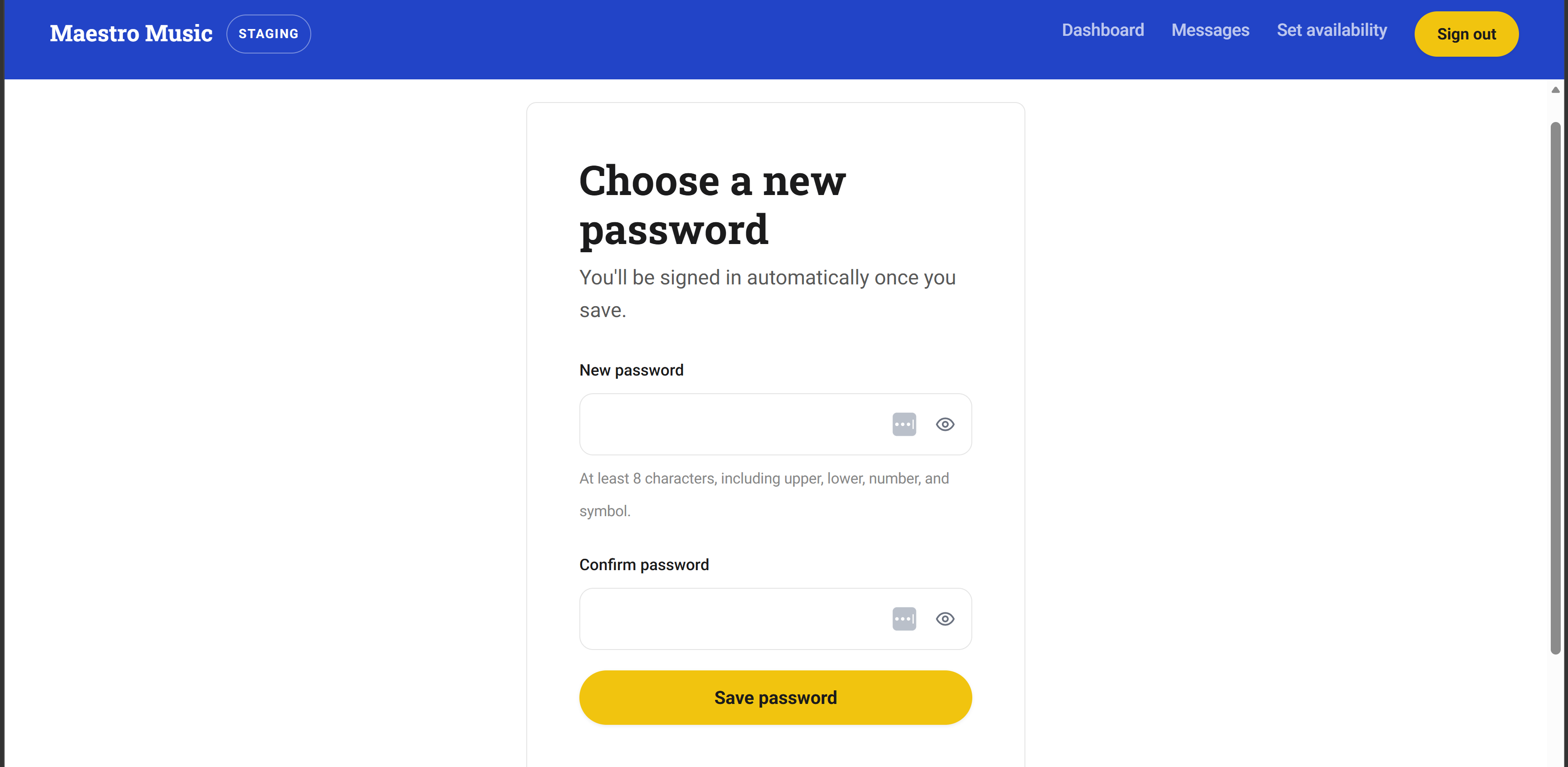
Enter a password, then click 'Save password.'
Once you set your password, you’ll be prompted to add a phone number.
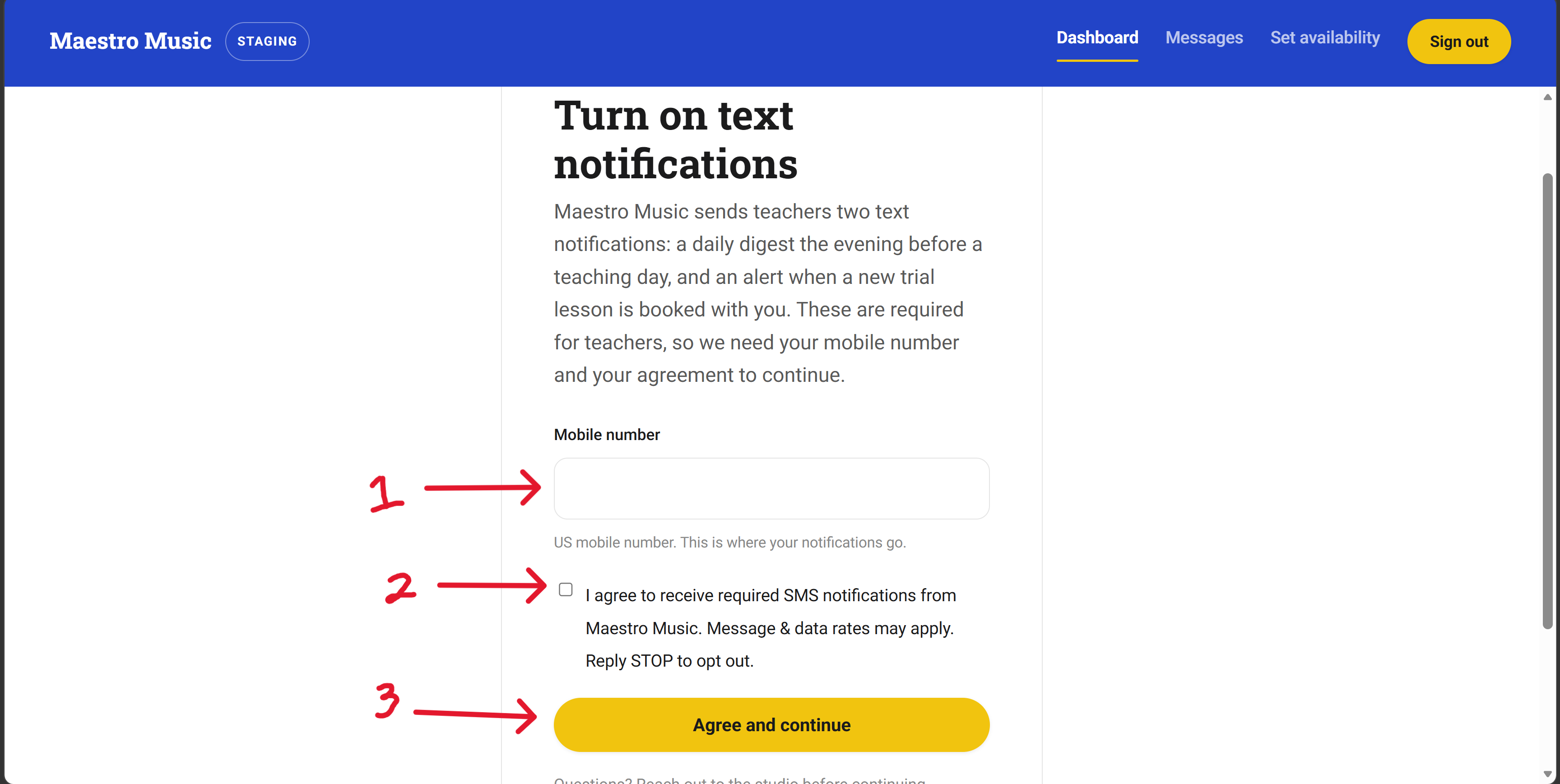
① Add your phone number, ② check the box, ③ click 'Agree and continue.'
You must add a phone number because we’ll send you critical lesson information:
- When a new trial student books a lesson with you.
- You'll get a text the evening before any teaching day with a “lesson digest.”
However, if at any time you decide you no longer want to receive texts from Maestro, you can reply STOP to unsubscribe.
Text Message and Password FAQs:
Do I have to use text notifications, or can I turn them off?
Providing your number and opting in is required for teachers because the texts help ensure you're aware of upcoming lessons. However, if you no longer wish to receive texts after you've provided your number, you can reply "STOP" to unsubscribe.
What if I forget my password?
Click on "forgot my password" on the login page (https://app.maestromusic.online/) to go through the steps to create a new password.
Do my text reminders for lessons the following day automatically update if a student cancels?
No, these reminders will not reflect if a student cancels or reschedules within a short period of time. It's important that you go to your dashboard for the most up-to-date information.
1.3. Setting Your Availability
The first thing you need to do is set your availability, otherwise your account will default to you being available from 9am-5pm, Monday-Friday for your time zone.
How to get to the "Set Availability" page: After setting your password, adding a phone number, and confirming your email, you'll arrive at your dashboard. When you first join the dashboard, your dashboard page will be practically empty.
Look for the tab to "Set Availability" at the top right-hand corner of your dashboard. Click on "Set Availability."
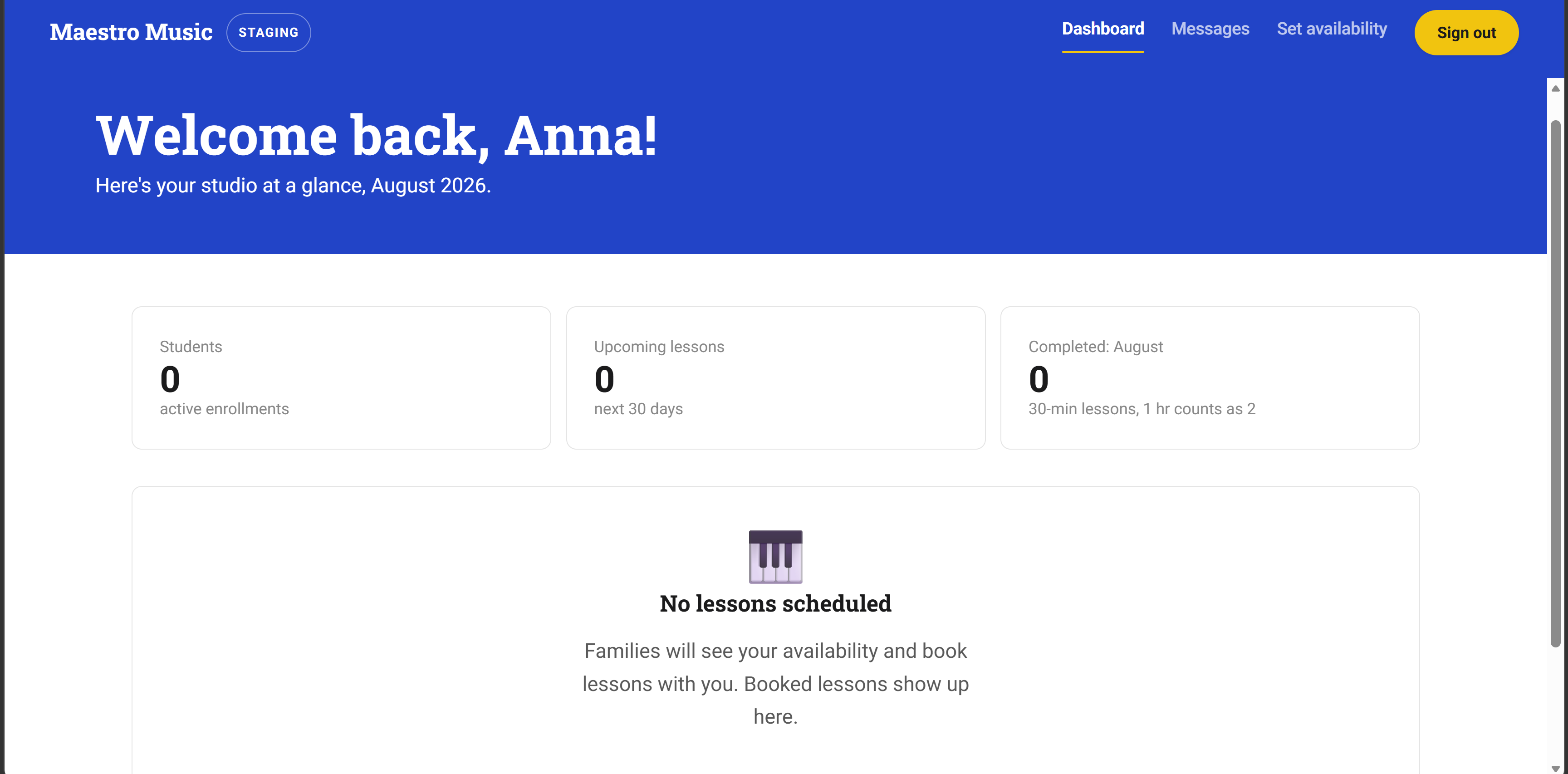
When you first join the Maestro Dashboard, your dashboard will be empty.
Choosing your lesson lengths
You can select whether you want to teach 30-minute lessons, 60-minute lessons, or both. We strongly recommend checking 30-minute lessons.
Once you’ve made your choice, be sure to select “save lesson length.”
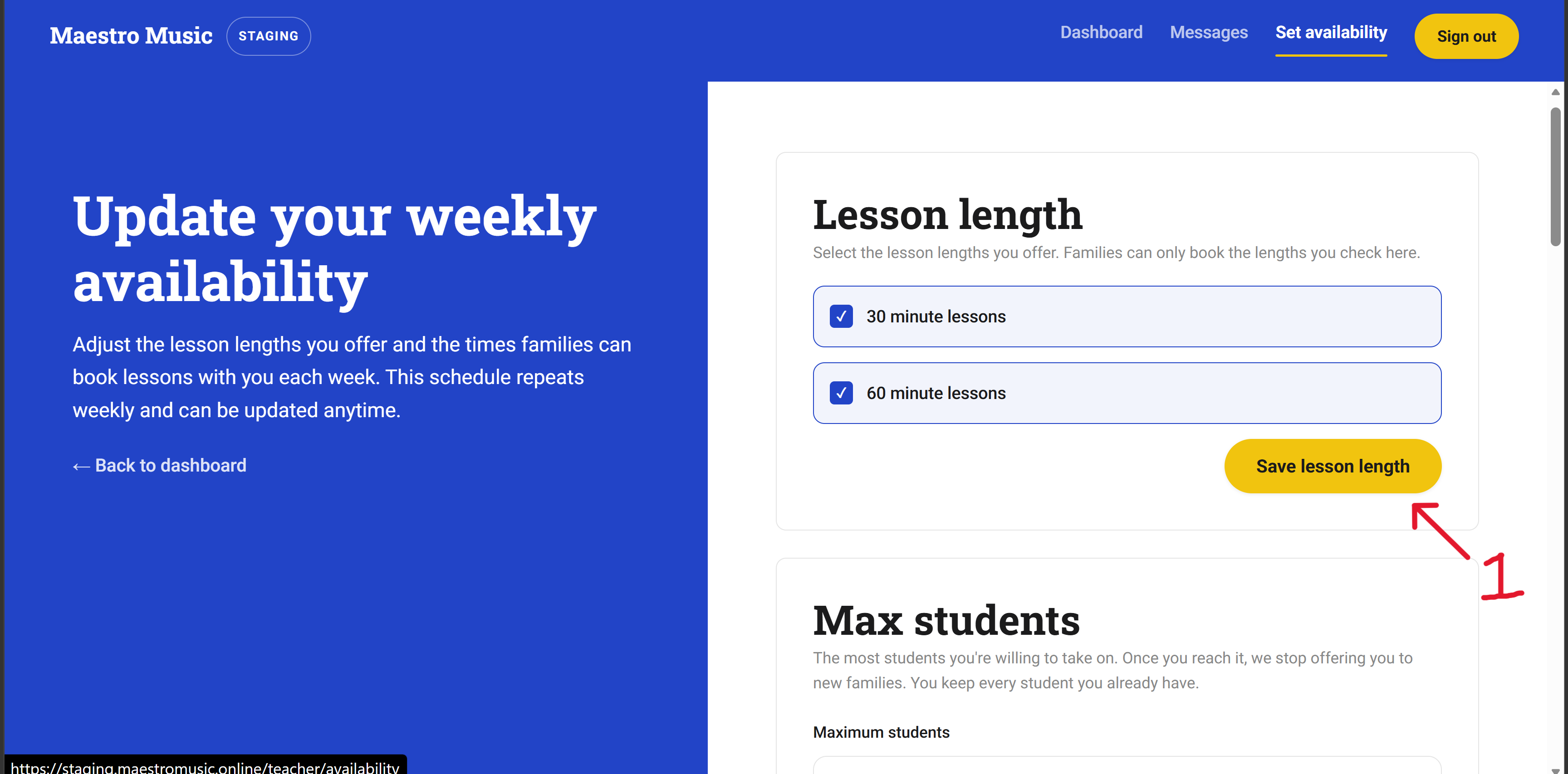
Check the lengths you'll teach, then click ① 'Save lesson length.'
Setting your max students
Your max students is the most students you're willing to take on at once. Once you hit this number, we stop sending you new families. Both enrolled active students and trial students count towards this number.
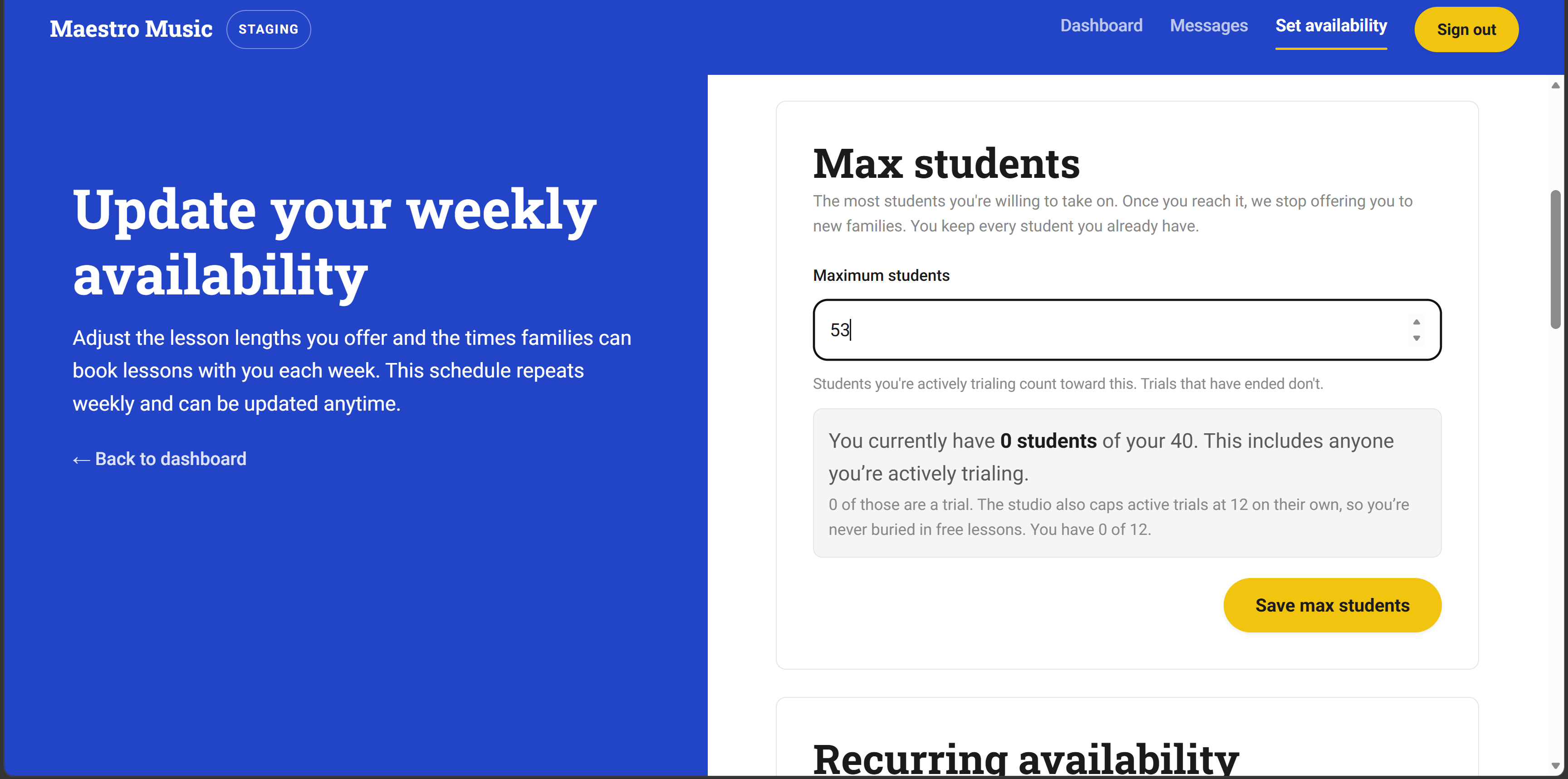
Set your number, then click 'Save max students.' The box below shows where you currently stand, including your trial count.
Setting your weekly recurring availability
Scroll further down on the “Set Availability” page and you'll find your weekly schedule grid:
- Select every time block you're open to teach on a recurring basis.
- Families can only book inside the blocks you've selected, and you can come back and adjust this anytime.
- At the bottom of this page, you’ll be able to block off unavailable time. You can block off anywhere from a few hours, to a full day, to several weeks at a time.
When you’re happy with your changes, be sure to scroll down and save your changes.
Availability FAQs:
How many trials can I have at any given time?
You can have at most 12 active trial students at a time. For example, if you have 12 trial students, you cannot take any more trial students until one converts to a paid student or cancels. We handle this automatically, so you won't have to worry about it.
Can I change my availability after I've set it?
Yes, you can update your availability at any time. If you need to schedule time off and already have lessons booked during that time, you will be prompted to request a reschedule for those lessons.
Do trial students count toward my max students number?
Yes, they do.
What happens once I hit my max?
We stop offering you to new families until you either raise your number or a spot opens up.
I unchecked a lesson length I used to offer. What happens to families already booked at that length?
Your current students at that lesson time will be unaffected, only new trial students will be blocked from booking with you.
2. Using Your Dashboard
Once you've set up your account, this is where you'll do everything from joining each lesson, checking your schedule, adjusting your availability, messaging families, and logging lesson notes.
Here is everything you need to know about your dashboard and how it works:
2.1. Quick Dashboard Overview
When you log in, you'll land here.
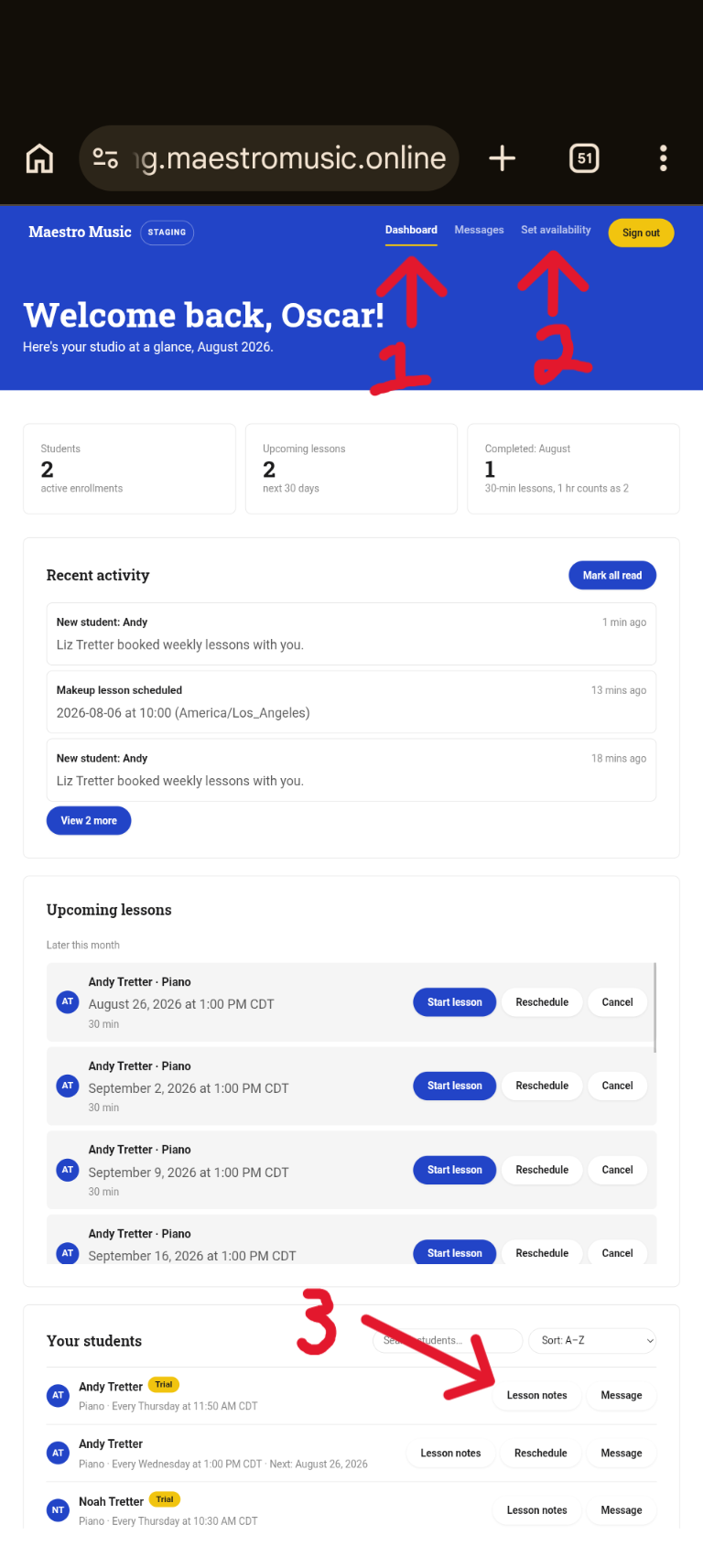
Your dashboard home: ① You're currently on the "Dashboard" page, ② go to "Set Availability" page to modify your availability, ③ view and add lesson notes for each student.
At the top you'll see three numbers:
- Your active students
- Your lessons booked in the next 30 days
- How many lessons you've completed this month
- Note, for payment purposes: a 30-minute lesson counts as 1 lesson and a 60-minute lesson counts as 2
Below that is a running feed of any news for bookings, reschedules, and makeup lessons. For recent activity, you can "mark all read" to clear your recent notifications.
2.2. Updating Availability
You’ll need to set your availability the first time you enter the dashboard. After that, you can return to the “Set Availability” page to update it at any time.
If you are planning to take time off for holidays, a new baby, or whatever else you may need to take time off for, we ask that you mark that time as unavailable at the bottom of the “Set Availability” page as soon as those dates are confirmed.
If you need to schedule time off at times when you have lessons scheduled, you'll be prompted to request a reschedule when you mark that time off. You can also communicate with your current families ahead of time and request that they reschedule those lessons to another time you're available.
2.3. Joining a Lesson
Each lesson has its own Zoom link, right on your dashboard. When it's time to teach, find the lesson and click "Start lesson" (this is how we track lessons, so it’s critical that you join from this “Start Lesson” link so we can ensure you get paid).
The Zoom lessons are time-sensitive:
- If you don’t join through the “Start Lesson” button within 8 minutes of the lesson starting, it will be counted as a “teacher no-show” and the parent will be prompted to reschedule that lesson.
- If you stop the lesson before 75% of the lesson has been completed, the lesson will count as a “teacher no-show” and the parent will be prompted to reschedule the lesson.
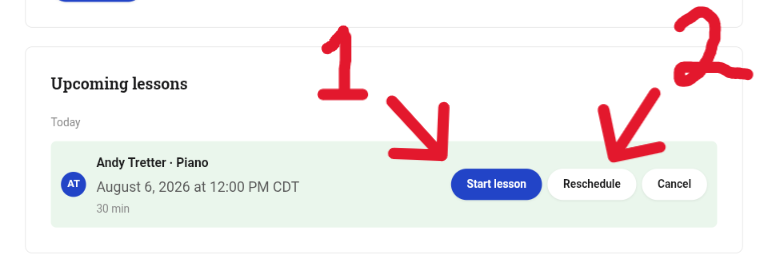
① Click "Start lesson" to join Zoom for this lesson, ② You can request by clicking "Reschedule".
2.4. Messaging Families
You can message your families directly. From the top of the dashboard, you’ll find a “Messages” tab where you can read and send messages with enrolled families. From here, you can add files (click the paperclip icon next to the message icon) as needed.
Note, messages should primarily be used to answer parent questions regarding scheduling, the platform, or any practice questions the student might have.
2.5. Your Students List
Go to the “Dashboard” tab at the top of your screen. Scroll down to the bottom and you'll find all of your active students. From here, you can view and add lesson notes, reschedule lessons, or message families.
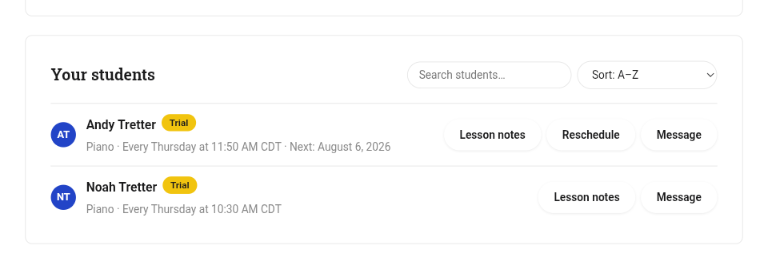
2.6. Logging Lesson Notes
After every lesson, you'll need to log your notes. Lesson notes are mandatory (more on this in the Policies section).
To do so: Click "Lesson notes" next to a student and you'll see three fields to fill in:
- What you covered
- What's next
- Homework
Lesson notes are only available for you to fill in when the lesson is scheduled to end (e.g. for a 30-minute lesson starting at 11:00 am, you’ll be able to add your notes starting at 11:30 am).
We strongly recommend filling in your lesson notes immediately after your lesson, but notes aren’t technically “due” for 2 days after lesson completion.
Using the Dashboard: FAQs
Can I reuse a lesson's Zoom link if the family and I move the time informally?
No, you cannot. If you need to move the time, you or the parent will need to reschedule the lesson. This is important for how we track lesson attendance and billing, so please don't try to work around old Zoom links.
How do I attach a file to a message?
Go to the "Messages" page from the top of the dashboard. From there, you'll see a field at the bottom of your screen to write a message, and to the right of that is a paperclip icon. Click the paperclip icon to add files to your message.
Where do I go to type up notes after a lesson?
You'll be prompted to add lesson notes.
3. Policies You Need to Know
Here are some of the most important dashboard policies you should be aware of:
3.1. How Lessons are Counted
Every lesson is built from 30-minute blocks:
- A 30-minute lesson counts as 1 lesson
- A 60-minute lesson counts as 2 lessons
This is the number you'll see in your "Completed" count on the dashboard.
3.2. Free Trials
New families start with a free trial, either a single lesson or a full free month, depending on how they signed up.
You just know two things:
- You're paid for trial lesson time exactly like a regular lesson.
- After a family's last free lesson, they have 6 days to enroll and keep their spot and lesson time with you. If they don’t book within 6 days, that time will revert to available on your calendar, and other students will be able to book that time.
3.3. How a Lesson Counts as Attended
To count as attended:
- Join deadline: you and the family each need to join the lesson within 8 minutes of the scheduled start. If someone doesn't, they're an automatic no-show, and the other person isn't expected to keep waiting.
- As a teacher, you’ll join from the “Start Lesson” button, whereas parents will click “Join Zoom”
- Stay threshold: if you both join in time, you each need to stay for at least 75% of the remaining lesson time for that lesson to count as an attended lesson.
A few things to keep in mind:
- If a family no-shows, you're still paid as usual.
- If you no-show, the system automatically turns that lesson into a reschedule rather than just cancelling it.
- If neither of you ever joins, the system defaults to marking it a teacher no-show.
- If you both join but both fall short of attending 75% of the lesson, whoever left first is the one marked no-show.
Think a call was wrong? Email info@maestromusic.online and we can manually correct it, including your pay.
3.4. Lesson Notes Deadlines
Notes are required after every lesson. See section 2.6 (Logging lesson notes) above information on how to fill them in. Please plan on filling these in right after each lesson so it’s easier to remember.
- 1 day after a lesson ends with no notes logged, you'll get an email and in-app reminder.
- 2 days after a lesson ends with still no notes, that lesson stops counting toward your payroll.
- If you forget to fill in lesson notes within the 2-day window, you'll need to email us to manually correct it.
3.5. Rescheduling
Families can:
- Move a lesson (both single lessons and recurring lessons) to another time slot based on the availability you set, so long as it's 48 hours or more before your scheduled lesson time.
- Cancel a lesson, so long as it's 48 hours before your lesson time. If they cancel with 48 hours or more notice, you will not be paid for that lesson. If they cancel with less than 48 hours' notice, it's considered a student no-show, and you will be paid.
Note: Our default cancellation and reschedule policy is 48 hours, however, there is a workaround you can use if you'd prefer to let families reschedule with less than 48 hours' notice. To do this, you'll need to communicate with the family and ensure that neither party logs on to the scheduled Zoom lesson. When neither you nor the parent log on within 8 minutes of the lesson start time, it's considered a "teacher no-show," which will prompt the family to reschedule any time within the next 28 days without losing that lesson. Reach out if you have any questions!
If you need to move a lesson, you can request a reschedule, which the family will need to approve. Alternatively, you can message the family and request that they reschedule a specific lesson.
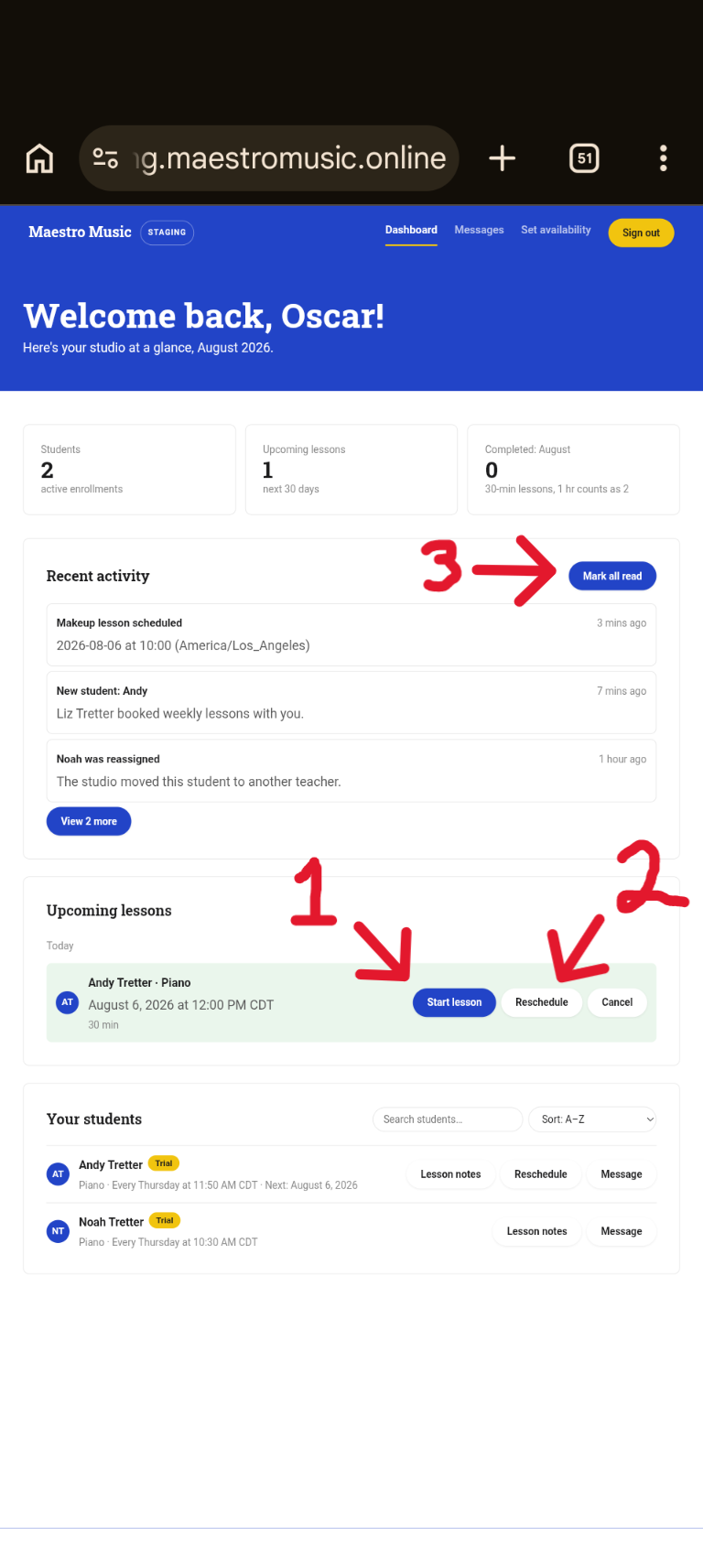
① Start lesson: you must press this to start the correct Zoom lesson.
3.6. Cancelling a Lesson Yourself
If you need to cancel a lesson, the family will be able to rebook that lesson at another time you have available, so long as it’s within 28 days.
If you're leaving Maestro Music altogether, give us as much notice as you can (we aim for 2–4 weeks) so we can help match your students with a new teacher.
3.7. How Families Take Time Off
Families can pause their own enrollment for up to 21 days directly from their account. This holds their spot with you and pauses their billing.
3.8. Respect, safety, and reporting concerns
Maestro Music has zero tolerance for discrimination, harassment, or bullying from any party, including parents/guardians, teachers, and students. This applies to every interaction on the platform, including lessons and messages.
If something happens during a lesson that concerns you, don't wait and don't try to handle it on your own. Email info@maestromusic.online and let us know what happened. We take these seriously and will follow up directly.
Important: If you’ve been instructed to complete Mandatory Reporter training for Charter students, you’ll need to abide by those rules and report any concerns as required by law.
Dashboard Policy FAQs
What if I think a no-show call against me was wrong?
Email info@maestromusic.online. We can review and correct it, including fixing your pay if needed.
Can a parent reschedule into a time slot I'm not normally available for?
No, reschedules only happen during times you've marked open in your recurring availability. If you want to offer a one-off exception, you'd need to open that slot up yourself first.
Do I need to approve a family's reschedule request?
No, if they need to reschedule, they'll only be able to book times you marked as available.
What counts as something I should tell admin about?
When in doubt, contact us about anything that felt off, unsafe, disrespectful, or concerning about a student, a parent, or interaction. If you're a mandatory reporter for that student, be sure to follow the guidance you received in your mandatory reporter training.
4. Answering Parent/Guardian Questions
Most of what parents ask you day-to-day is already answered elsewhere in this guide, but the most important thing is just knowing where to direct them should they bring questions to you.
4.1. Where to Send Them For Most Questions
Before troubleshooting anything yourself that you’re not confident you can easily answer, point families to the Parent Guide. It covers how to join a lesson, reschedule, cancel, pause, add a second child, and more.
Most questions you'll get are already answered there.
4.2. If a Parent Wants to Take Lessons Off-Platform
Some families will ask to just message you directly, use a personal Zoom, or otherwise skip the app altogether. When this happens, politely decline and explain that lessons need to stay on Maestro so they're tracked and so you get paid for them.
If they’re experiencing a scheduling conflict, point them to the reschedule or pause options in their own account rather than arranging something outside the platform.
If they have any concerns or questions you don’t know how to answer, provide them with the link to the Parent Guide and the Maestro support email (info@maestromusic.online).
4.3. If a Parent Asks About Their Billing
Please direct any billing questions to info@maestromusic.online.
4.4. When to Suggest They Contact Maestro (or Contact Maestro Yourself)
For anything about billing, tech issues, or account administration, please direct parents to email info@maestromusic.online and we’ll reply as soon as possible.
If it's urgent (a lesson starting soon and something's broken, or a safety concern), email us and put "URGENT" in the subject line.
Family Questions: FAQs
A parent wants to skip the app, what do I say?
Let them know lessons need to stay on the platform so they're tracked and you get paid. If they cannot figure out how to use the app or have any questions, contact info@maestromusic.online.
Author