Parent Dashboard Guide
Aug 07, 2026
This guide covers everything you need to know about your dashboard, including booking and joining lessons, rescheduling, billing, and who to contact if something doesn't look right.
We built this dashboard together with a homeschool parent, and we’re always looking for ways to continue improving it so music lessons become as easy as possible for your family. If you have a question this guide doesn't answer, or a suggestion for how we can make it better, please email us at info@maestromusic.online.
1. Signing Up with the Maestro Dashboard
To get your family started, you’ll need to make an account and schedule your trial lesson(s). It should take just a few minutes.
1.1 Creating your account & student profile
During the signup process, you’ll be asked to prove your name, confirm your email, and add your (optional) phone number. Then, you'll be asked for some basic information about your student.
1.2 Booking your free trial lesson(s)
Next, pick a time for your student's free 30-minute trial lesson(s).
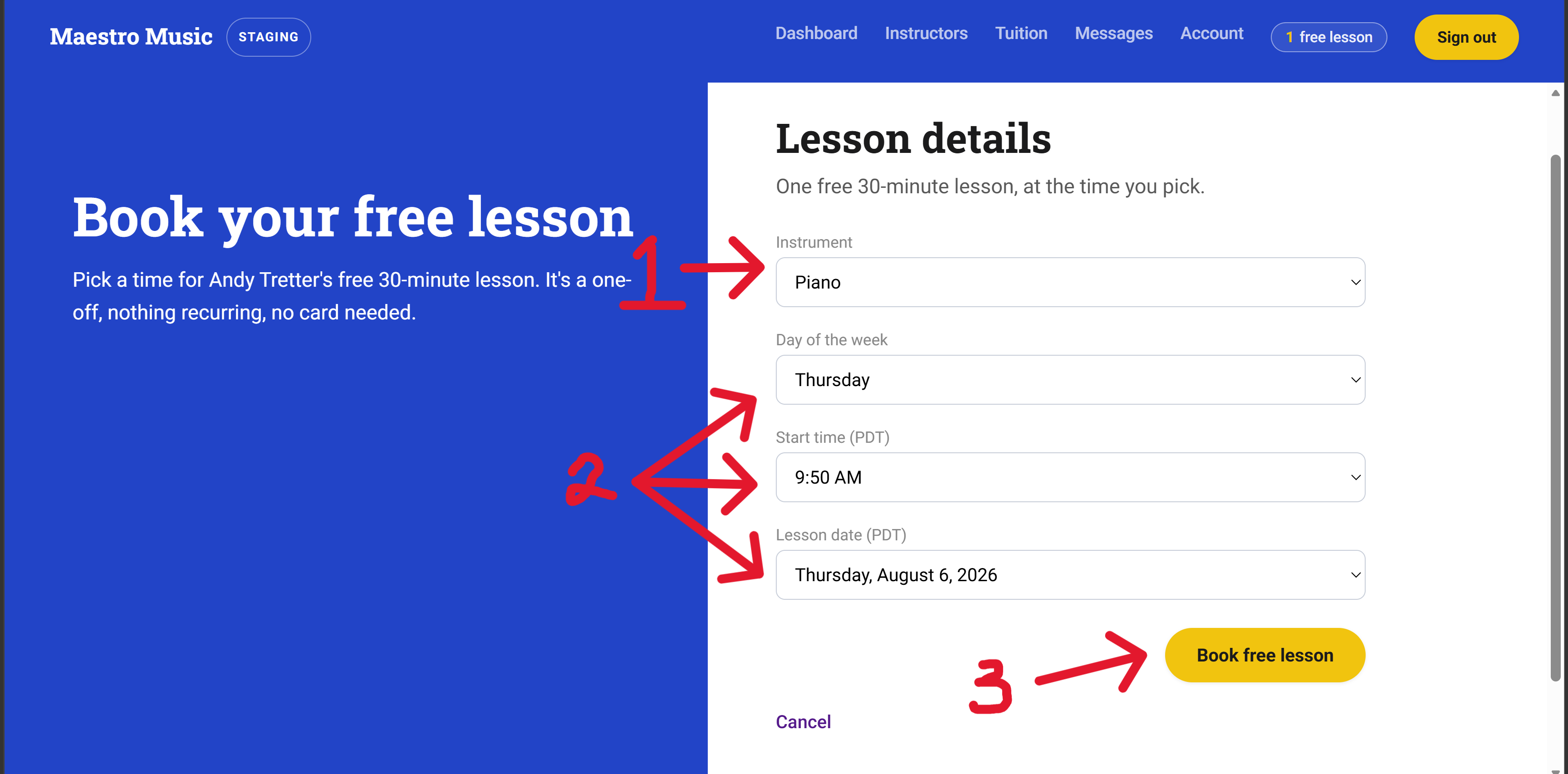
① Choose an instrument, ② choose a day of the week and time, ③ then click 'Book free lesson.'
1.3a Getting matched with a teacher
When you book your trial through the “Book a Free Lesson” buttons on our website or through our partners, like Julie Bogart from Brave Writer, we’ll automatically match you with a teacher based on your instrument, schedule, and funding type.
If you were referred by someone and already know who you'd like to work with, you can book directly through that teacher's page instead of going through the general signup flow.
1.3b Selecting your own teacher
To select your teacher for a trial lesson yourself, follow these steps:
1. Click on the “Instruments” dropdown menu on our website header
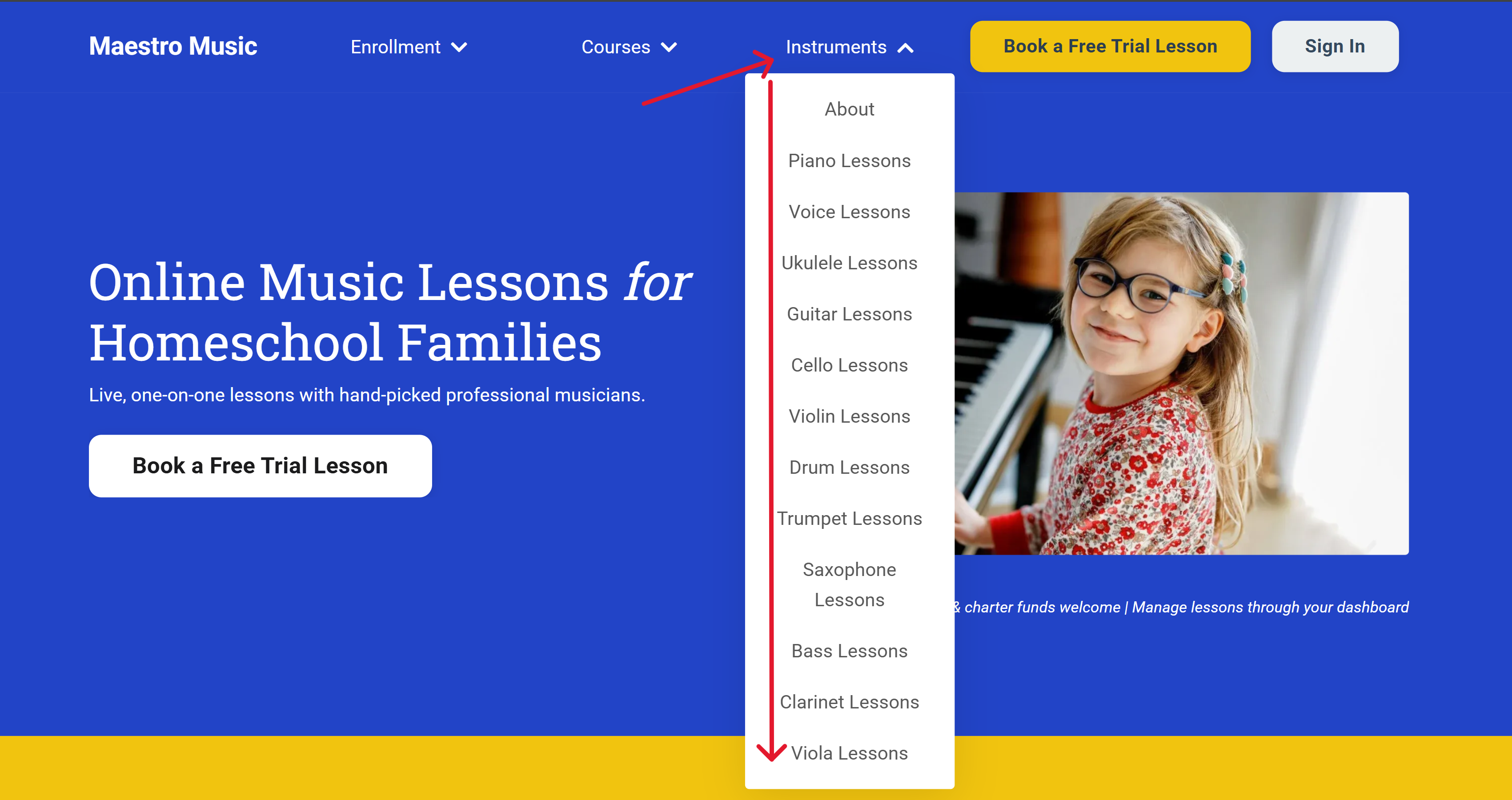
2. Click on the instrument your student wants to learn
3. Read through the teacher bios on the instrument page (shown below is the piano instrument page)
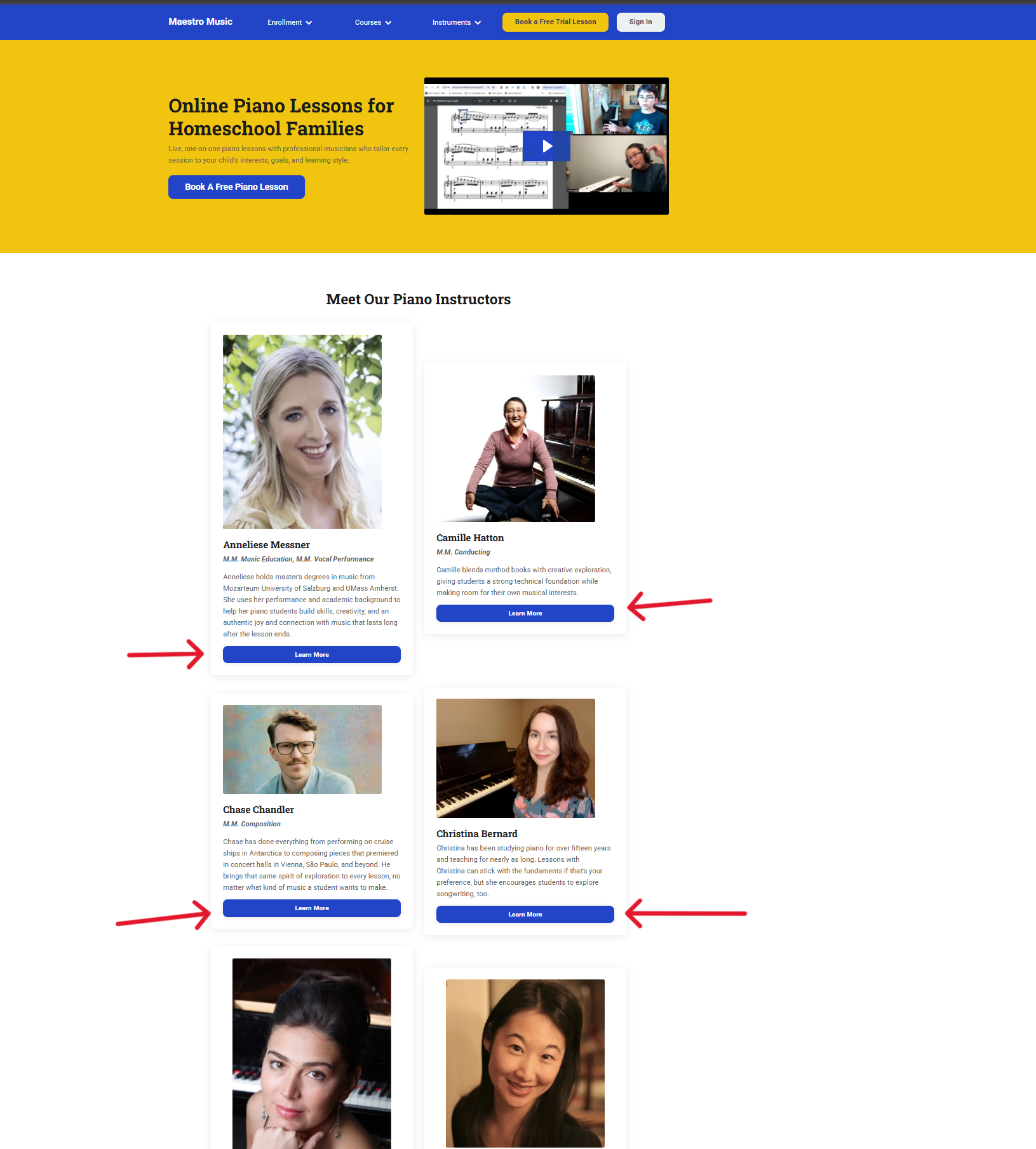 4. Click on the teacher's photo or "Learn More," which brings you to that teacher's page, where you can watch their intro video and learn more about them
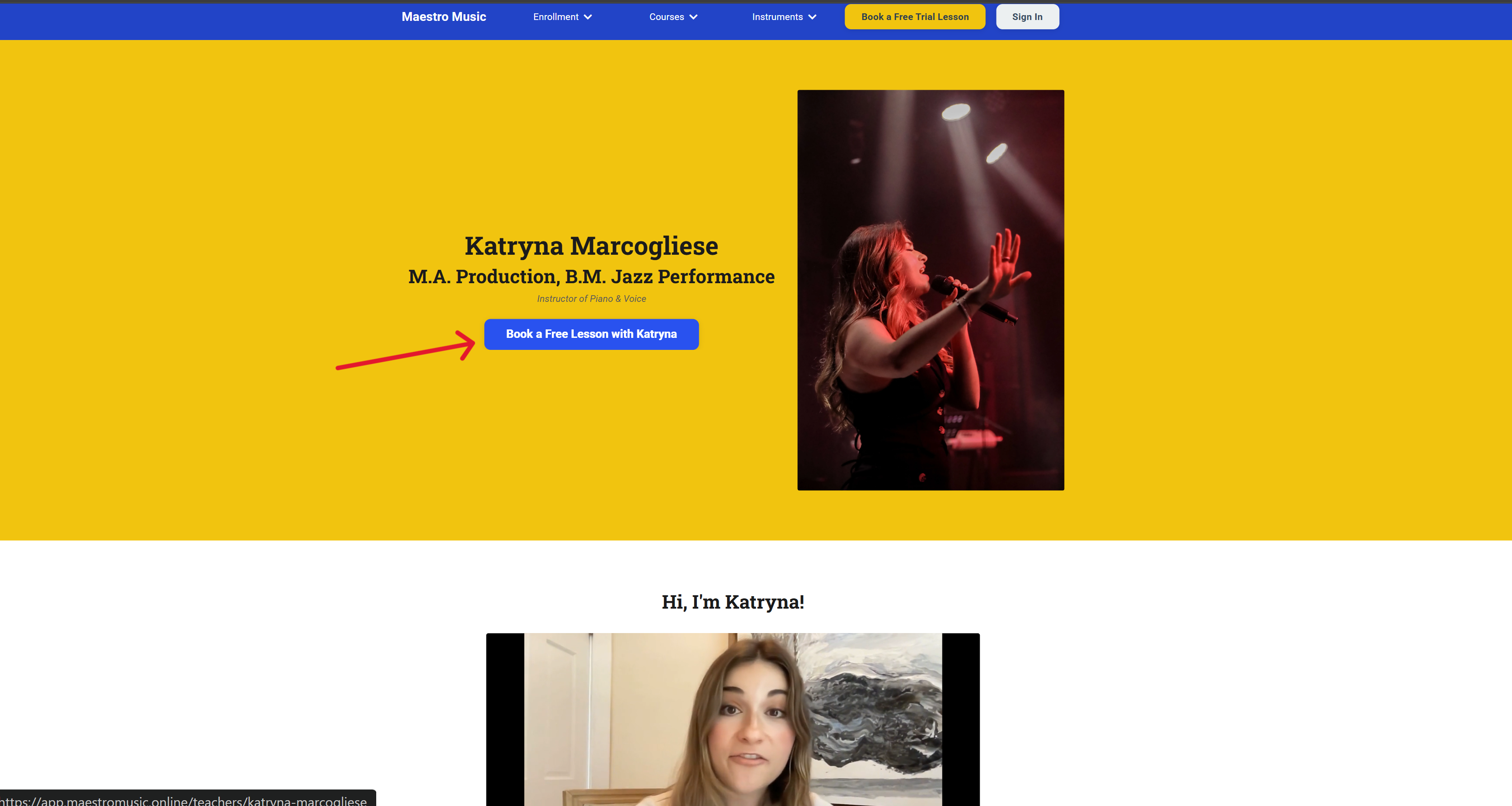
5. Click “Book a Free Lesson with [teacher name]” to book with them
Frequently Asked Questions About Getting Started:
Can I choose my own teacher instead of being matched?
Yes, you can select your own teacher for a free trial lesson by following the steps outlined above in section 1.3b. If you don't sign up directly from a teacher page, our booking process will automatically match you with a teacher based on your chosen instrument, funding type, and schedule.
Either way, you can view instructors through your dashboard and change instructors at any time after your trial lesson(s).
Can I add a second child during my trial?
Not during your trial. The "Add another child" button is disabled until your first student's trial lesson(s) have ended. After the trial period, you can add as many students to your family account as you'd like.
What if my school isn't on the charter list yet?
You can request that we add your charter school or become a vendor with your ESA fund from your account. We will do our best to get added as an approved vendor and will approve your request when possible.
Alternatively, if your charter school or ESA is not listed, you can sign up with a private pay account and request invoices from info@maestromusic.online that you can submit to your school or funding source. We cannot guarantee that they will reimburse you, though.
2. Joining, Rescheduling & Cancelling Lessons
Once you've signed up, you'll be able to join lessons, reschedule lessons, and make modifications from your dashboard.
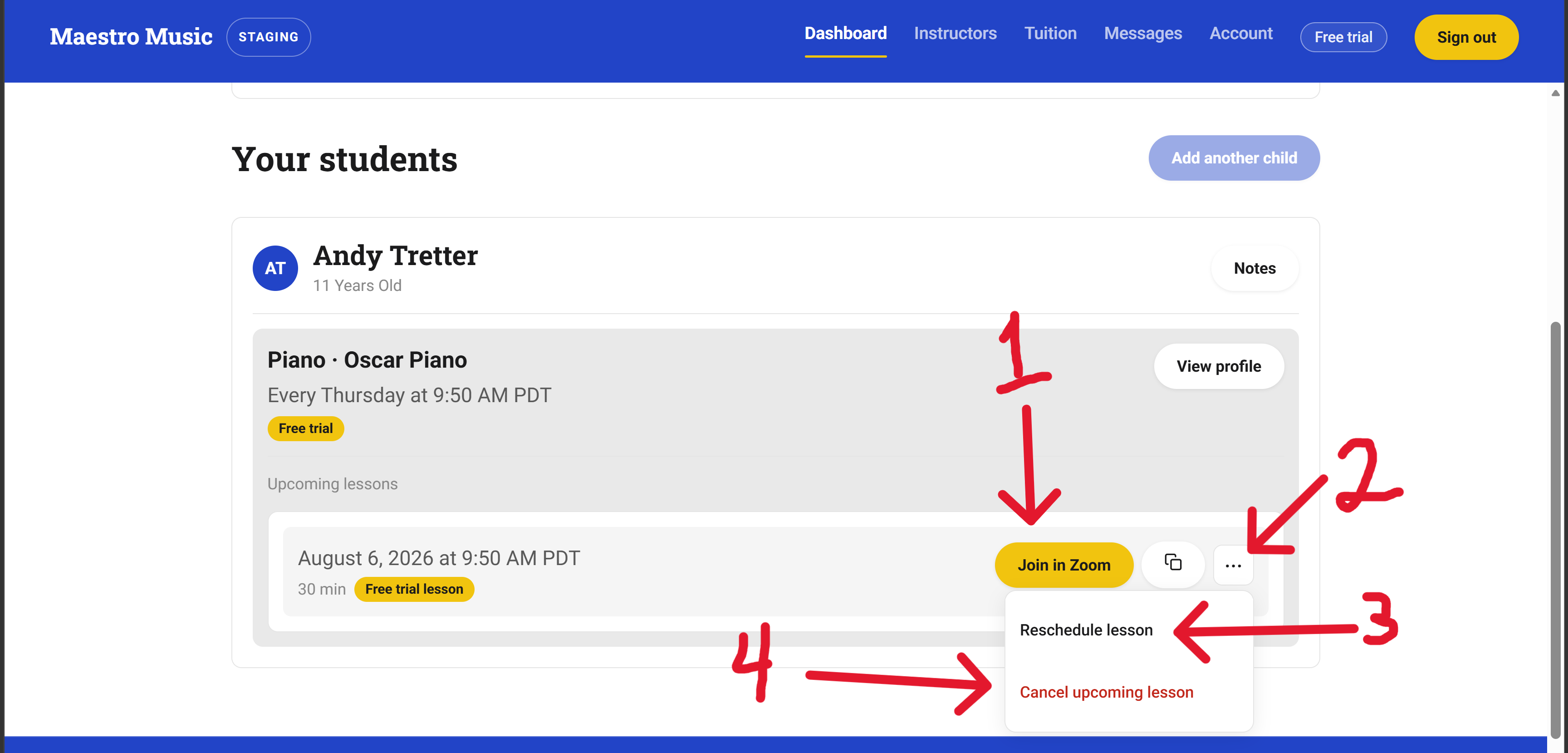
① Click "Join in Zoom" to join your lesson. ② Click the "..." to see more options: ③ reschedule, or ④ cancel.
Join the lesson
Each lesson has its own Zoom link. You’ll join your lesson from the “Join in Zoom” button.
Reschedule a lesson
Click "Reschedule lesson" to pick a new time. When you click reschedule, you’ll be able to reschedule either just for that one lesson, or for your whole recurring lesson schedule going forward. You'll only see times your teacher has marked as open, and the new time is booked automatically.
You can reschedule 48 hours or more before your lesson starts.
Cancel an upcoming lesson
If you cancel a single lesson with 48+ hours' notice, you’ll have 28 days to book a makeup.
If you cancel with less than 48 hours' notice, that lesson is considered a no-show and you won’t be able to reschedule it after cancelling. If you have an extenuating circumstance and believe your student should be able to make up the lesson, please email info@maestromusic.online and we'll consider your request on a case-by-case basis.
2.1 How attendance & no-shows work
Lessons are tracked automatically based on who joins the Zoom call and when.
If your teacher doesn't join within 8 minutes of the scheduled start, it's automatically marked as a teacher no-show, and you're not expected to keep waiting. When that happens, you’ll be prompted to reschedule that lesson.
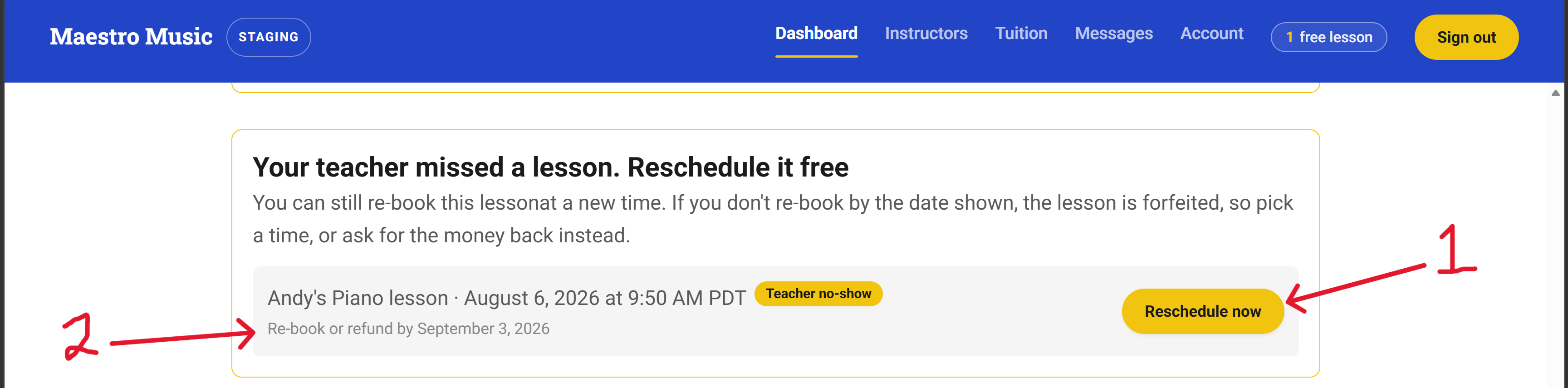
If your teacher misses a lesson, you'll see this. ① Click "Reschedule Now" to pick a new time before ② the date shown. After that, the lesson is forfeited, so rebook or ask for a refund before then.
If, on the other hand, you no-show instead (meaning you don't join within 8 minutes of the lesson start time or you cancel a lesson with less than 48 hours' notice) your teacher is still paid for that lesson as scheduled and you won’t be able to reschedule that lesson.
2.2 Pausing or ending lessons altogether
You can pause your enrollment for up to 21 days directly from your account settings. Many Maestro Music students pause lessons for the holiday season and summer break. Pausing your subscription will hold your time slot with your current teacher and pauses billing while you're away.
If you want to stop lessons entirely, that's also available from your account settings.
Frequently Asked Questions About Lesson Logistics:
What if we get disconnected from our teacher mid-lesson?
Rejoin using the same "Join in Zoom" link. The system tracks total time on the call, not one continuous connection, so a brief disconnect won't count against your lesson as long as you rejoin.
Do I still get charged if we miss a lesson?
Yes, a missed lesson still counts unless you reschedule or cancel (available with 48+ hours' notice). If your teacher misses the lesson instead, you'll be able to reschedule.
What if I cancel less than 48 hours before my lesson?
That lesson will count as a no-show. If you need to cancel with lesson than 48 hours' notice and would like to request an exception from our 48-hour policy, please email info@maestromusic.online.
3. Setting Up Ongoing Lessons
Once your free trial period is done, here's how you’ll book your lesson time with your instructor, pay for lessons, and add more students to your account.
3.1 Converting from trial to ongoing lessons
After your trial lesson period, you'll see a prompt on your dashboard to set up ongoing lessons with the same teacher.
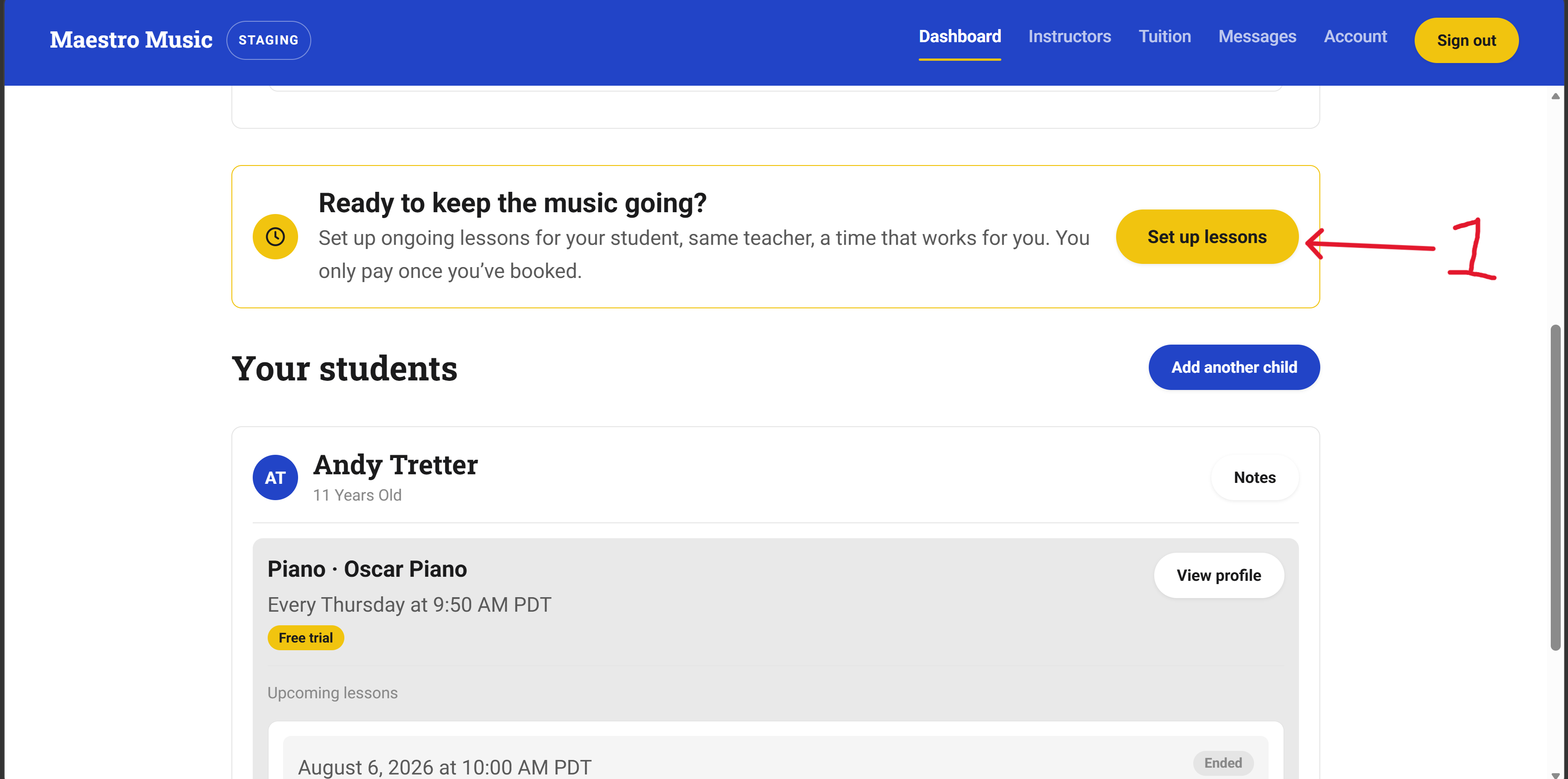
After you've completed your trial lessons, this banner will pop up at the top of your dashboard. ① Click here to set up a recurring weekly time with your trial teacher."
You have 6 days to sign up for paid lessons before your booked slot is released to other families.
3.2 Booking your recurring schedule
When you book your lessons after the trial, you’ll select an instrument (you’ll be limited to the instrument your student completed the trial(s) on), lesson length, day, and start time. This will become your weekly recurring slot with your teacher.
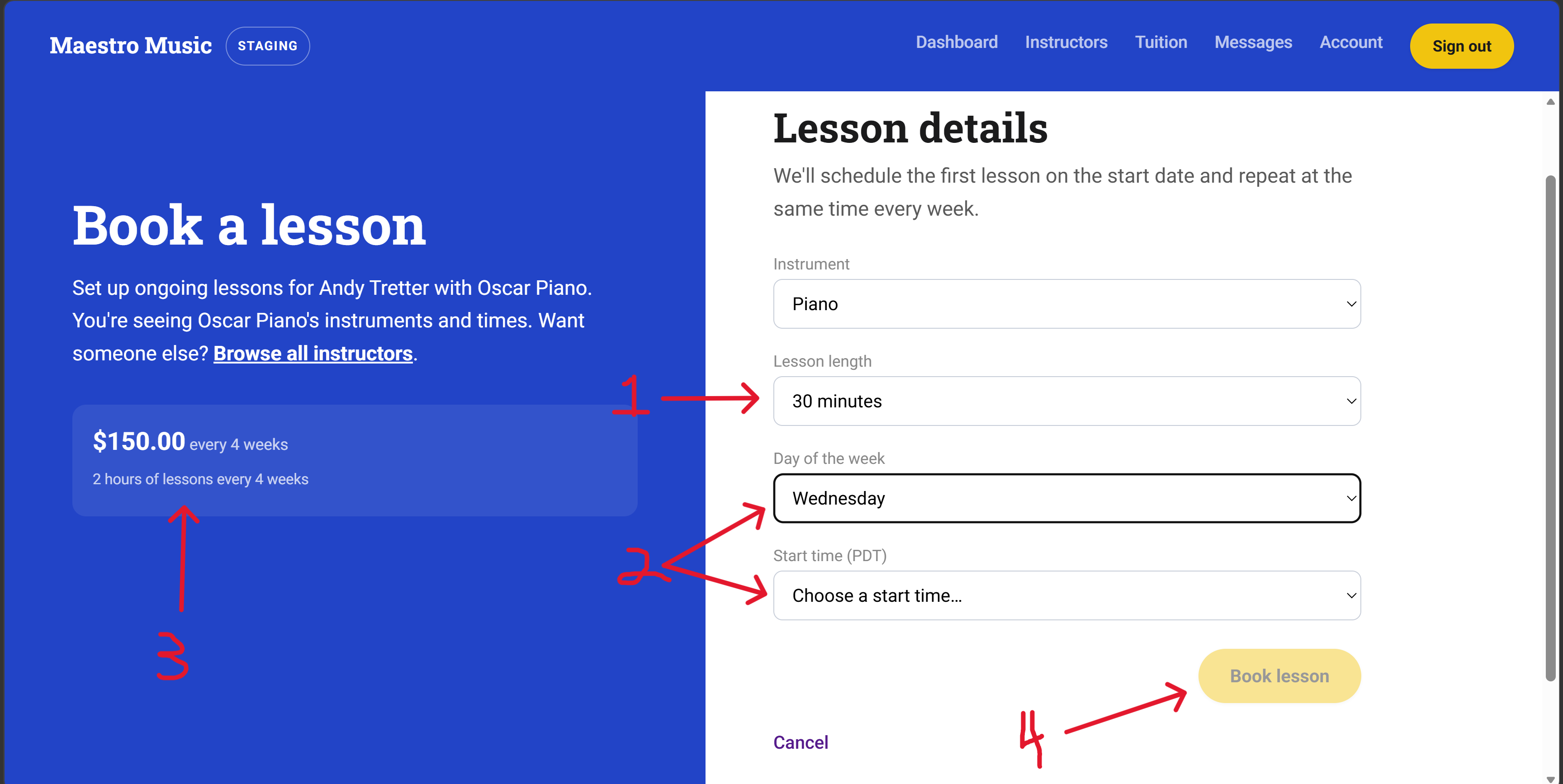
① Choose your lesson length, ② Choose your recurring lesson day and time, ③ check our price, then click ④ to confirm.
3.3 Adding more lessons or another student
Once your first student has completed the free trial lesson(s), you’ll be able to add more lessons and instruments for that student. You’ll also be able to add as many additional students to your account as you’d like.
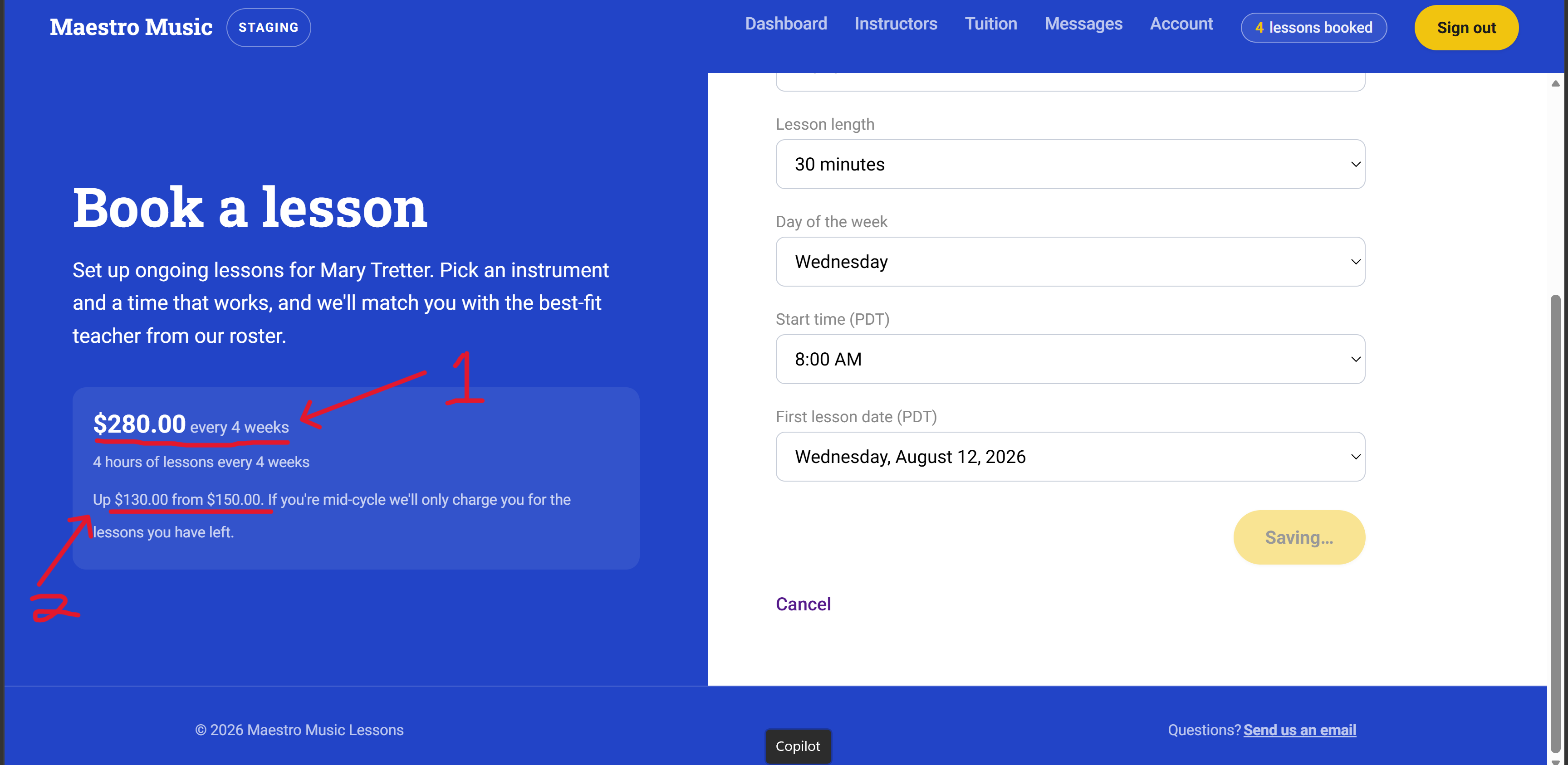
Adding more lesson time lowers your per-lesson rate automatically. When you book, you'll see ① the new total price you pay every 28 days for your entire account, and ② the discount applied before you confirm.
The more lessons you book on your account, the lower the rate per lesson (down to $30 per lesson). More information is available on the tuition tab at the top of your Dashboard.
Frequently Asked Questions About Ongoing Lessons:
How does adding a second student change the cost per lesson?
Your rate is based on your household's total lessons booked per week, so adding a second student (or more lessons for the same student) lowers the cost per lesson. More information is available at the tuition tab at the top of your Dashboard and on our website (click "Enrollment" at the top of the website, then click "Tuition").
What happens if I add lessons mid-cycle?
Additional lessons you add mid-cycle will be prorated until your next 28-day billing period begins.
Can I still switch teachers after my trial?
Yes, you can browse all instructors from the "Instructors" tab of the Dashboard (or find their profile through the "Instruments" tab of our website) and book directly with anyone who has open availability that fits your schedule.
4. Payment Types
How you pay for lessons depends on your funding type (private pay, ESA, or charter school). You can review how each type of payment works here:
4.1 Private Pay
Private pay is billed automatically through Stripe on a 28-day cycle rather than calendar months, so your billing date shifts slightly over time rather than landing on the same date every month. Your billing cycle starts on the day you sign up for paid lessons.
Your rate is based on how many 30-minute lesson blocks your household books per week, with a minimum of 1 block/week (4 30-minute lessons per month).
The more lessons you book, the lower your per-lesson rate, down to $30/block once you're at 12+ blocks/month. The discount applies automatically as you add lessons or students, and you can see review exact rate on the Tuition tab at the top of your Dashboard.
4.2 ESA Funds
Maestro Music is a vendor for several ESAs (Education Savings Account). You can explore which ESAs we work with through our website, here. If you don’t see your ESA, you’ll still have the option to request it, and we’ll try our best to work with you.
Once your request is approved, we’ll email you an invoice on the 1st of each month for you to submit to your ESA funder. Once approved, you won't need to re-request approval each cycle.
Note: Invoices go out within 48 hours of your initial signup. After that, you’ll receive your invoice on the 1st of each month.
Specific to Florida ESA (Step Up)
Florida ESA works a little differently from other states: you pay privately upfront (through the private-pay signup), and we send an invoice you submit to get reimbursed directly by Florida's ESA program.
4.3 Charter School Funds
If you're enrolled with a charter school we work with (view all charter schools Maestro Music is approved for), you’ll request approval when you sign up for trial lesson(s). Once approved, your school typically sends payment as a purchase order or voucher directly to Maestro Music.
If your specific charter school isn't on our approved list yet, you can request we add them from your account. You can do your trial lesson(s) while you wait for our response to your request. Alternatively, you can sign up as private pay instead and request invoices from info@maestromusic.online to submit to your school on your own. However, we can't guarantee reimbursement, since that depends on your school's own policies.
Frequently Asked Questions About Payment:
Why did my rate change?
Your rate is tied to your household's total booked lessons per week. If you add or remove lessons or students, the rate will shift automatically from a maximum of $37.50 per 30-minutes (if you book 4 lessons per month total), down to $30 per 30-minutes (if you book 12 or more lessons per month). Check the Tuition tab in your dashboard for your current rate at any time.
How does billing work if my ESA or charter funding is delayed?
We understand that ESA and charter funds are sometimes delayed. We'll work with you whenever possible to keep lessons going throughout payment delays, though we reserve the right to pause or cancel lessons if payments stay overdue for an extended period.
Can I switch payment types later?
Yes. Please email info@maestromusic.online if your funding situation changes and we'll help you switch.
5. Messages & Notifications
Here, we’ll go over how you can message your student's teacher and manage your notifications.
5.1 Messaging your teacher
Message your teacher directly from the Messages tab at the top of your dashboard. We recommend messaging your teacher(s) directly for scheduling questions, practice questions, or anything else related to your music lessons themselves.
If you have any questions about how the Dashboard works, questions about billing, or need other technical support, please instead email us at info@maestromusic.online.
5.2 Choosing your text reminders
Texts messages are optional. If you provide your phone number, you can opt-in to reminders one hour before a lesson, a reminder 24 hours before a lesson, or both. You can turn any of these on or off from your account settings at any time or reply STOP to your SMS messages.
We highly recommend opting in to lesson reminders one hour before lessons.
Frequently Asked Questions About Messages and Notifications:
Can I turn off texts?
Yes, text reminders are entirely optional. You can turn them on or off and alter if and when you receive SMS lesson reminders from your account settings on your Dashboard.
How do I reach my teacher outside a lesson?
Use the Messages tab in your dashboard. For anything about billing, tech issues, or your account itself, email info@maestromusic.online instead.
Getting Support
6.1: If anything concerns you
Maestro Music has zero tolerance for discrimination, harassment, or bullying from any party. If something during a lesson or in a message concerns you, email info@maestromusic.online and let us know right away.
6.2: Contacting Maestro Music
For any support regarding billing, tech issues, or your account, email info@maestromusic.online. We will do our best to reply within 24 business hours. If it's urgent (a lesson starting soon and something's broken, or a safety concern), put "URGENT" in the subject line for the fastest response.
Getting Support: Frequently Asked Questions:
What if I have a concern about my teacher?
Email info@maestromusic.online. We'll review your concern and follow up with you as soon as we can.
How fast will I hear back?
We do our best to respond to standard questions within 24 business hours. Mark the email "URGENT" for anything time-sensitive or safety-related and we will prioritize your email.
Author